# Create Bootable USB Media in Ubuntu Using BalenaEtcher
# Create Bootable USB Media in Ubuntu Using BalenaEtcher
Coming from Windows, RUFUS application has been the hot chick in town when it comes to creating a bootable USB. But RUFUS only supports Windows and Mac.
So if you are using Linux distributions, RUFUS is not the way to go. But fear not. Just as the case with almost every other task, popular Linux distros such as Ubuntu has never failed to meet the user demands. The same is the situation when you need to convert ISO to bootable USB Media in Ubuntu, Linux Mint, or any Debian distros.
In this tutorial, I’m going to show you how to create a bootable USB Media in Ubuntu within a minute. So I assume you already have Ubuntu running on your PC.
For this tutorial, I will be making an Ubuntu ISO 18.04 bootable in a USB 4GB flash drive.
**STEP 1: Downloading** [**Balena Etcher**](https://www.balena.io/etcher/) **Desktop App**
Open the terminal… **_Ctrl+Alt+T_**
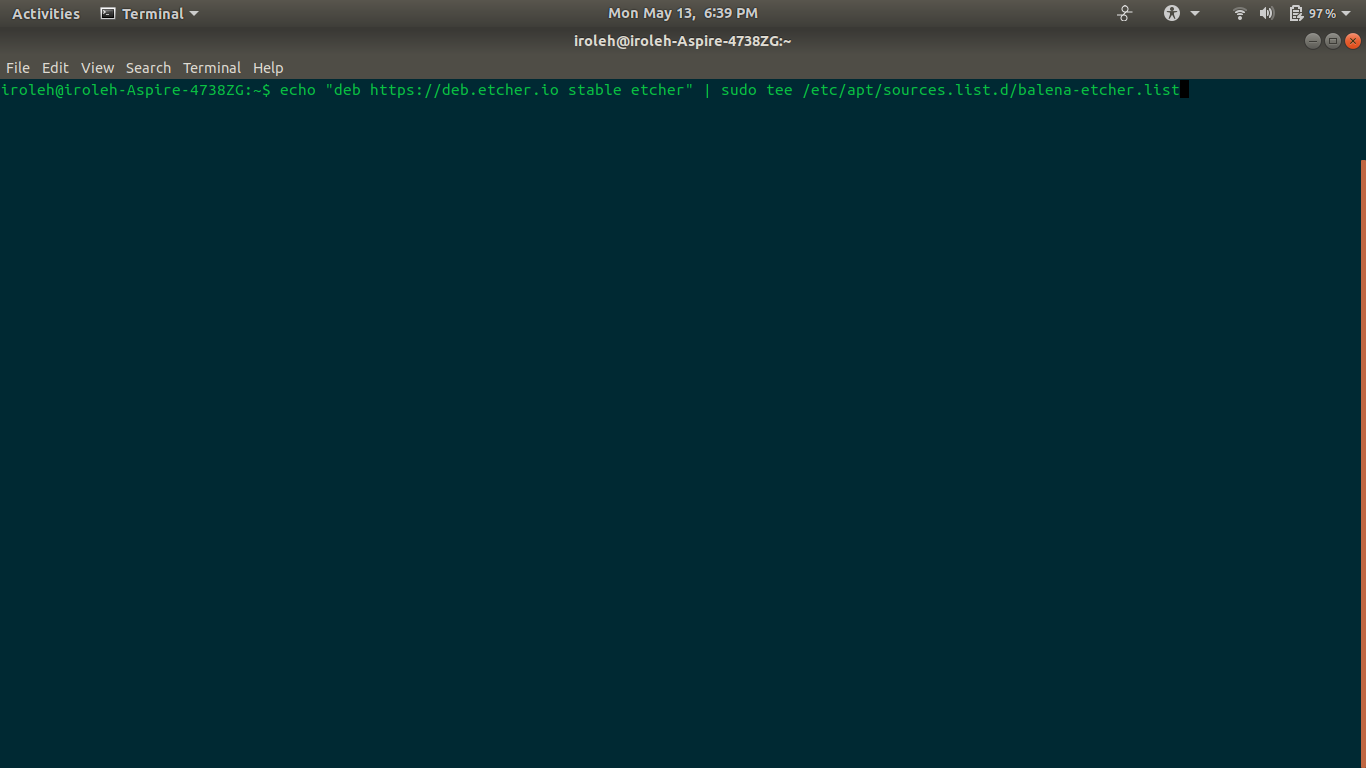
* Add Etcher debian repository:
**_Press the Enter keyboard after every command._**

```
echo "deb [https://deb.etcher.io](https://deb.etcher.io) stable etcher" | sudo tee /etc/apt/sources.list.d/balena-etcher.list
```
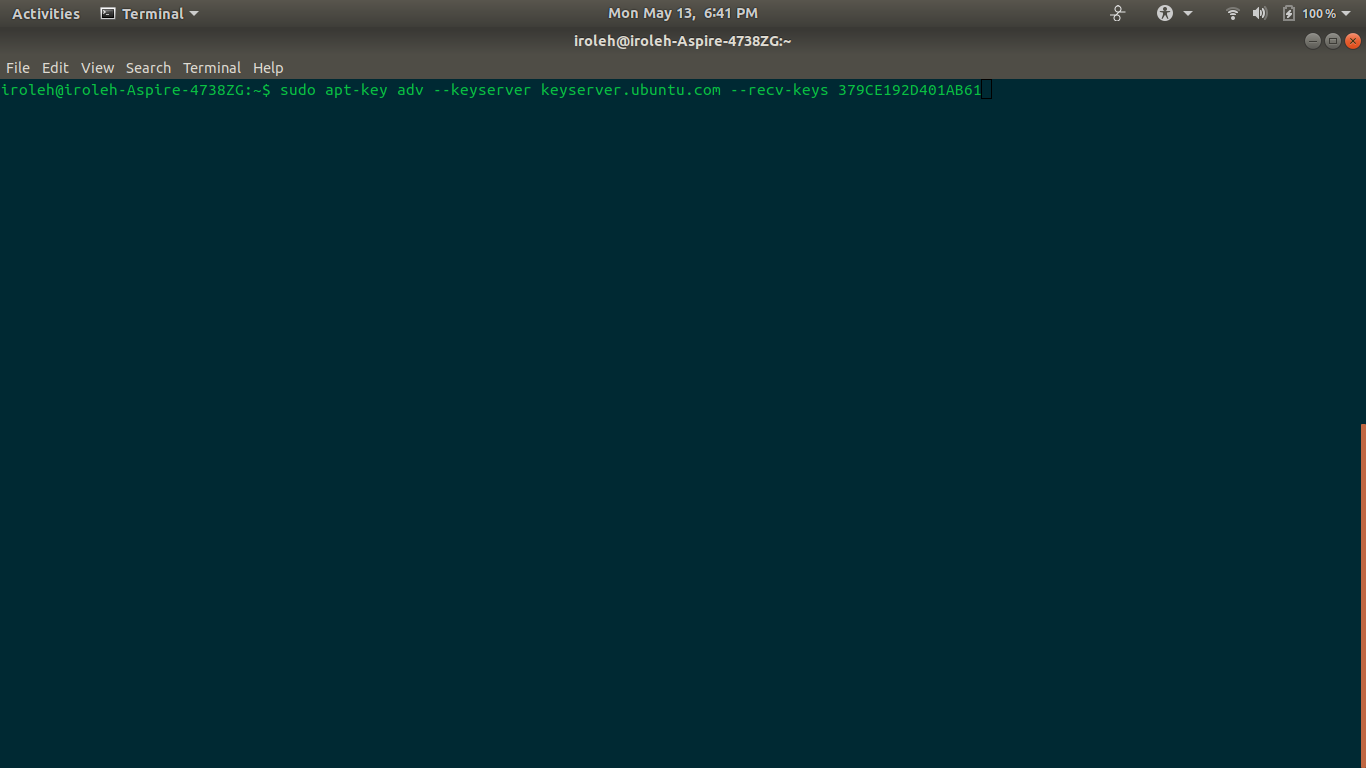
* Trust Bintray.com’s GPG key:

```
sudo apt-key adv --keyserver keyserver.ubuntu.com --recv-keys 379CE192D401AB61
```
* Update and install:
```
sudo apt-get install balena-etcher-electron
```
**Ever feel like uninstalling it?**
Uninstall:
```
sudo apt-get update
```
**STEP 2: Open BalenaEtcher**
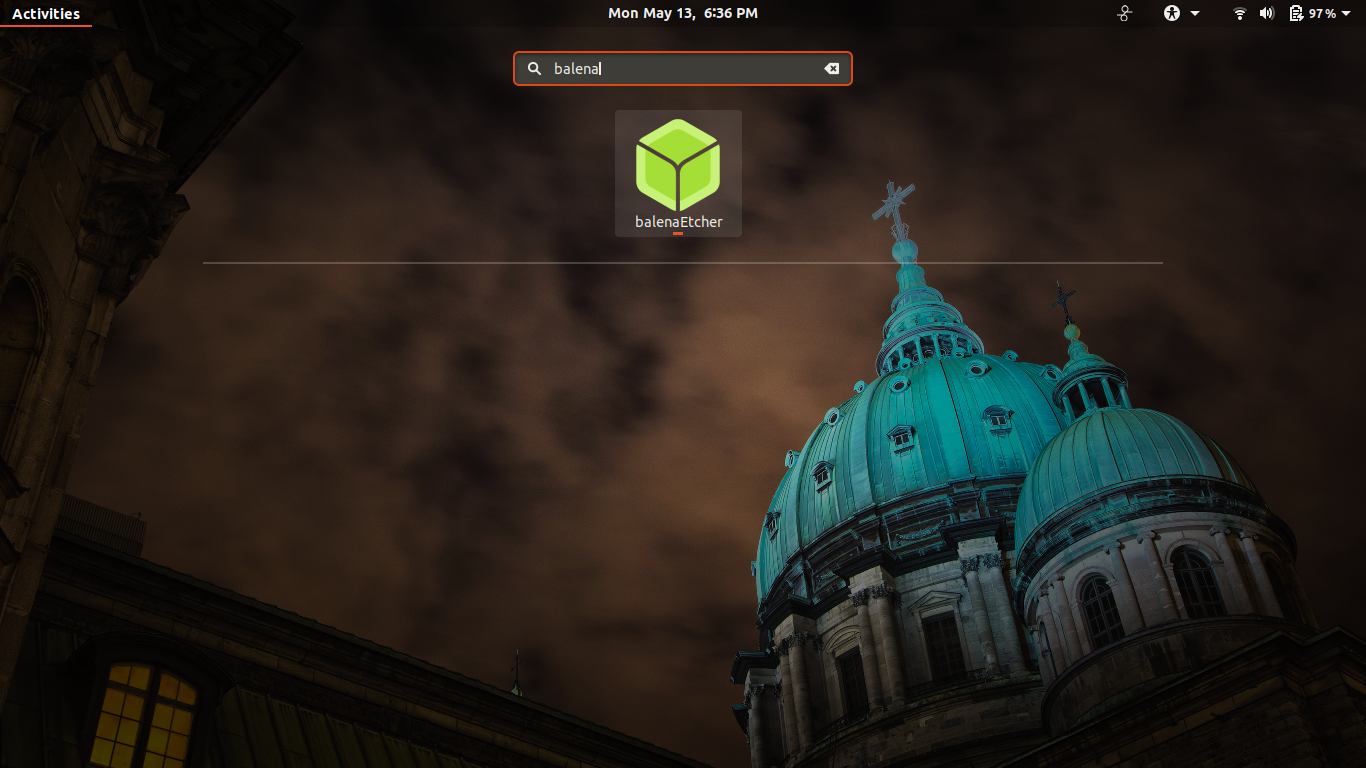
Search BalenaEtcher from your Application Menu, or simply press the Windows key and type ‘BalenaEtcher’.

Search for BalenaEtcher on ubuntu 18.04
**STEP 3: The Final Step (Making the USB Bootable)**

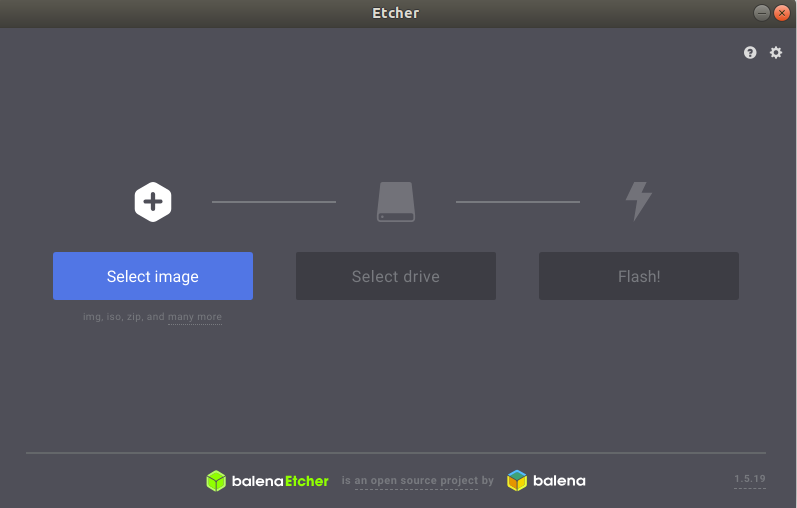
balenaEtcher environment
The environment is simple and straight forward:
* Select the image (iso file)
* Select the flash drive plugged in the PC
* Click on the Flash button, wait for the magic to happen
**Grab a cup of coffee, while the magic happens…**

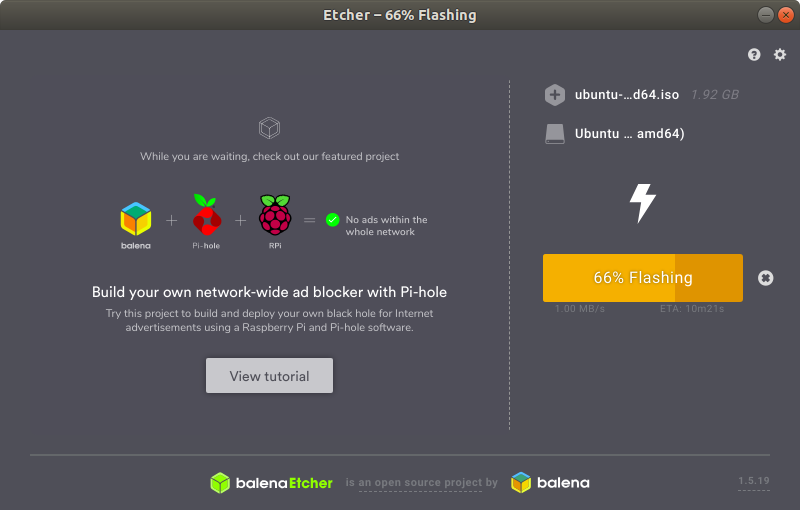
flashing
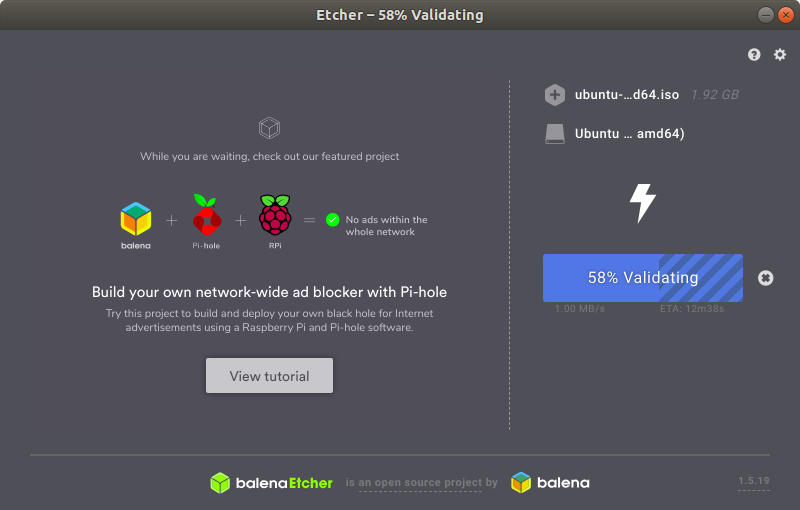
validating
**Boom!!! Magic Done.
Your USB flash drive is bootable, unmount your drive, and go make yourself proud…**

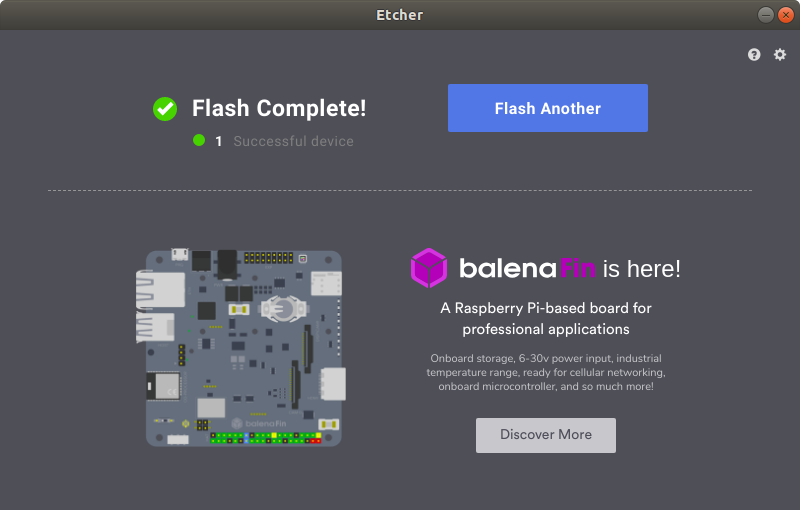
Flash complete
```
sudo umount /dev/sdc1
```
Was this tutorial helpful?
* **Clap**
* Follow on [**Twitter**](https://twitter.com/IrolehVincent)
* Come back for more cool stuff on **Web** && **Linux**
 ```
echo "deb [https://deb.etcher.io](https://deb.etcher.io) stable etcher" | sudo tee /etc/apt/sources.list.d/balena-etcher.list
```
* Trust Bintray.com’s GPG key:

```
echo "deb [https://deb.etcher.io](https://deb.etcher.io) stable etcher" | sudo tee /etc/apt/sources.list.d/balena-etcher.list
```
* Trust Bintray.com’s GPG key:

 ```
sudo apt-key adv --keyserver keyserver.ubuntu.com --recv-keys 379CE192D401AB61
```
* Update and install:
```
sudo apt-get install balena-etcher-electron
```
**Ever feel like uninstalling it?**
Uninstall:
```
sudo apt-get update
```
**STEP 2: Open BalenaEtcher**
Search BalenaEtcher from your Application Menu, or simply press the Windows key and type ‘BalenaEtcher’.

```
sudo apt-key adv --keyserver keyserver.ubuntu.com --recv-keys 379CE192D401AB61
```
* Update and install:
```
sudo apt-get install balena-etcher-electron
```
**Ever feel like uninstalling it?**
Uninstall:
```
sudo apt-get update
```
**STEP 2: Open BalenaEtcher**
Search BalenaEtcher from your Application Menu, or simply press the Windows key and type ‘BalenaEtcher’.

 Search for BalenaEtcher on ubuntu 18.04
**STEP 3: The Final Step (Making the USB Bootable)**

Search for BalenaEtcher on ubuntu 18.04
**STEP 3: The Final Step (Making the USB Bootable)**

 balenaEtcher environment
The environment is simple and straight forward:
* Select the image (iso file)
* Select the flash drive plugged in the PC
* Click on the Flash button, wait for the magic to happen
**Grab a cup of coffee, while the magic happens…**

balenaEtcher environment
The environment is simple and straight forward:
* Select the image (iso file)
* Select the flash drive plugged in the PC
* Click on the Flash button, wait for the magic to happen
**Grab a cup of coffee, while the magic happens…**

 flashing
flashing
 validating
**Boom!!! Magic Done.
Your USB flash drive is bootable, unmount your drive, and go make yourself proud…**

validating
**Boom!!! Magic Done.
Your USB flash drive is bootable, unmount your drive, and go make yourself proud…**

 Flash complete
```
sudo umount /dev/sdc1
```
Was this tutorial helpful?
* **Clap**
* Follow on [**Twitter**](https://twitter.com/IrolehVincent)
* Come back for more cool stuff on **Web** && **Linux**
Flash complete
```
sudo umount /dev/sdc1
```
Was this tutorial helpful?
* **Clap**
* Follow on [**Twitter**](https://twitter.com/IrolehVincent)
* Come back for more cool stuff on **Web** && **Linux**